Client/Server
4D Desktop applications can be used in a Client/Server configuration, either as merged client/server applications or as remote projects.
-
merged client/server applications are generated by the Build Application manager. They are used for application deployments.
-
remote projects are .4DProject files opened by 4D Server and accessed with 4D in remote mode. The server sends a .4dz version of the project (compressed format) to the remote 4D, thus structure files are read-only. This configuration is usually used for application testing.
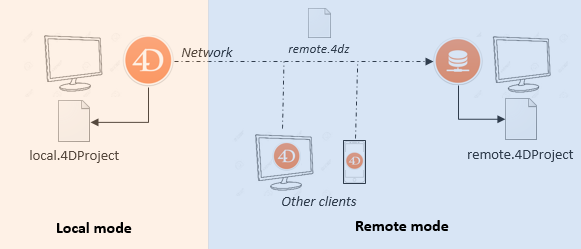
Connecting to a remote project from the same machine as 4D Server allows modifying the project files. This specific feature allows to develop a client/server application in the same context as the deployment context.
Opening a merged client/server application
A merged client/server application is customized and its starting is simplified:
- To launch the server portion, the user simply double-clicks on the server application. The project file does not need to be selected.
- To launch the client portion, the user simply double-clicks the client application, which connects directly to the server application.
These principles are detailed in the Build Application page.
Opening a remote project
The first time you connect to a 4D Server project via a remote 4D, you will usually use the standard connection dialog. Thereafter, you will be able to connect directly using the Open Recent Projects menu or a 4DLink shortcut file.
To connect remotely to a 4D Server project:
- Do one of the following:
- Select Connect to 4D Server in the Welcome Wizard dialog
- Select Open/Remote Project... from the File menu or the Open toolbar button.
The 4D Server connection dialog appears. This dialog has three tabs: Recent, Available, and Custom.
If 4D Server is connected to the same subnetwork as the remote 4D, select Available. 4D Server includes a built-in broadcasting system that, by default, publishes the name of the 4D Server projects available over the network. The list is sorted by order of appearance and updated dynamically.
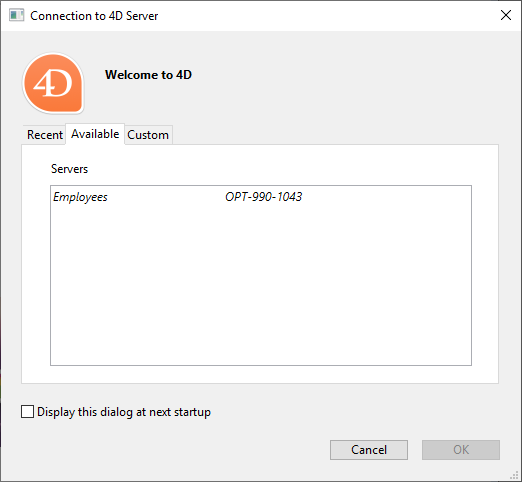
To connect to a server from the list, double-click on its name or select it and click the OK button.
If the published project is not displayed in the Available list, select Custom. The Custom page allows you to connect to a published server on the network using its network address and assigning it a customized name.
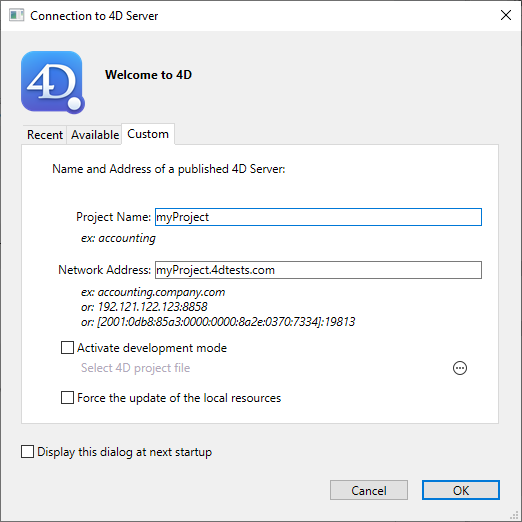
- Project name: Defines the local name of the 4D Server project. This name will be used in the Recent page when referring to the project.
- Network address: The IP address of the machine where the 4D Server was launched.
- If two servers are executed simultaneously on the same machine, the IP address must be followed by a colon and port number, for example:
192.168.92.104:19814. - By default, the publishing port of a 4D Server is 19813. This number can be modified in the Project settings.
- If two servers are executed simultaneously on the same machine, the IP address must be followed by a colon and port number, for example:
The Activate development mode option opens the remote connection in a special read/write mode and requires to access the project folder from the remote 4D.
Once this page assigns a server, clicking the OK button will allow you to connect to the server.
Once a connection to the server has been established, the remote project will be listed on the Recent tab.
Updating project files on the server
4D Server automatically creates and sends the remote machines a .4dz version of the .4DProject project file (not compressed) in interpreted mode.
- An updated .4dz version of the project is automatically produced when necessary, i.e. when the project has been modified and reloaded by 4D Server. The project is reloaded:
- automatically, when the 4D Server application window comes to the front of the OS or when the 4D application on the same machine saves a modification (see below).
- when the
RELOAD PROJECTcommand is executed. Calling this command is necessary for example when you have pulled a new version of the project from the source control platform.
Updating project files on remote machines
When an updated .4dz version of the project has been produced on 4D Server, connected remote 4D machines must log out and reconnect to 4D Server in order to benefit from the updated version.
Development mode
The Development mode in 4D Server is a special project opening mode that allows read/write access for connected remote 4D applications. The project must be available in interpreted mode.
This mode allows one or more developers to work simultaneously on the same project in Design environment. When a project is opened in Development mode:
- Project files are available in read/write so that you can edit methods, forms, etc.
- Several remote 4D can concurrently open the same interpreted project files and edit them. An automatic locking system prevents from concurrent access to the same resource.
- Modifications are made available to all remote developers. Note however that there is no automatic push to remote developers, they need to refresh to get latest versions of files (a refresh is done each time the developer switches from design mode to application mode for example, or selects Save all from the File menu).
To use this mode, select the Activate development mode option in the connection dialog box from your remote 4D. You are prompted to Select 4D project file: you need to select the .project file that 4D Server has opened. If you select a different file, an alert dialog box warns you that the development mode is not available. It means that the remote 4D must have access to the project folder over the network (the whole project folder must be shared, i.e. the root folder of the project).
For performance reasons with this configuration, it is strongly recommended that the project folder be stored on a dedicated file server (e.g. a NAS) on a local network.
When both the server and the remote 4D are on the same machine, additional rules applies.
Here is an overview of the development mode architecture:
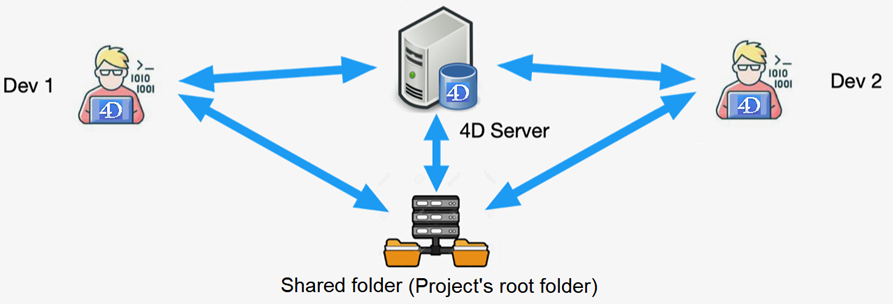
This feature is designed for small-size development teams who are used to work on binary databases and want to benefit from project features while maintaining their current organisation. However, for multi-user development on 4D projects, we recommend using a standard architecture where developers work on their machine and manage their work using source control repository tools (Git, SVN, etc.). This organisation provides a great flexibility by allowing developers to work on different branches, and compare, merge, or revert modifications.
Using 4D and 4D Server on the same machine
When 4D connects to a 4D Server on the same machine, the application behaves as 4D in single user mode and the design environment allows you to edit project files. This feature allows you to develop a client/server application in the same context as the deployment context.
When 4D connects to a 4D Server on the same machine, the development mode is automatically activated, whatever the Development mode status.
Each time 4D performs a Save all action from the design environment (explicitly from File menu or implicitly by switching to application mode for example), 4D Server synchronously reloads project files. 4D waits for 4D Server to finish reloading the project files before it continues.
However, you need to pay attention to the following behavior differences compared to standard project architecture:
- the userPreferences.{username} folder used by 4D is not the same folder used by 4D Server in the project folder. Instead, it is a dedicated folder, named "userPreferences", stored in the project system folder (i.e., the same location as when opening a .4dz project).
- the folder used by 4D for derived data is not the folder named "DerivedData" in the project folder. Instead it is a dedicated folder named "DerivedDataRemote" located in the project system folder.
- the catalog.4DCatalog file is not edited by 4D but by 4D Server. Catalog information is synchronised using client/server requests
- the directory.json file is not edited by 4D but by 4D Server. Directory information is synchronised using client/server requests
- 4D uses its own internal components and plug-ins instead of those in 4D Server.
It is not recommended to install plug-ins or components at the 4D or 4D Server application level.
Client/Server Development
Code execution location
In a client/server application, it is important to know where your code will be actually executed: server-side or client-side. Execution location is crucial when you want to implement user session-related code, share information between processes, access data, etc.
The following table summarizes where the code is executed by default and how to switch its execution location (if allowed). Note that local means that the code will be executed on the machine from where it is actually called.
| Code | Default execution | How to switch |
|---|---|---|
| ORDA data model functions | server | use local keyword in function definition |
ORDA computed attribute functions get(), set() | server | use local keyword in function definition |
ORDA computed attribute functions query(), orderBy() | server | n/a |
| ORDA event functions (general) | server | n/a |
ORDA event function constructor() | local | n/a |
ORDA event function event touched() | server | use local keyword in function definition |
| User class functions | local | n/a |
| Shared or session singleton function | local | use server keyword in function definition |
| Trigger | server | n/a |
| Project method called from a client | client | check Execute on server option. The code is executed in the twin process of the user session process |
call Execute on server command. The code is executed in the Stored procedures session | ||
| Project method called from a stored procedure on the server | server | call EXECUTE ON CLIENT command. The target client must have been registered |
| Object method | local | n/a |
| Database methods: | server | n/a |
| Database methods: | client | n/a |
Triggers
Triggers are executed on the machine where the database engine is actually located. With 4D Server, triggers are executed within the context of processes running on the server machine, and not on the client machine. More specifically, they are executed in the context of the "twinned" processes of the user processes that call the database operation. These twinned processes share the database context with the user process on the client machine (in particular, the state of transactions and the locking of records) but do not share the language context (variables, processes, sets, current selections). Note however that the current record of the table of the trigger is the same in all contexts.
On the server, a trigger is executed in the process responsible for the associated action (create/update/delete). If the action was triggered from a preemptive process on the server (e.g. a stored procedure, a http request in scalable session mode), then the trigger will be executed in the same preemptive process. But, if the action was triggered from a 4D remote, then the trigger will be executed in the twinned process, which is always in cooperative mode (a twinned process is shared for all calls of a user).
Stored procedures
A 4D stored procedure is project method executing a process method in a process running on the server machine (or on any registered client machine), instead of on the client machine which has launched the method.
With 4D in local mode, when you use a command, such as New process, you can start a user process in which you can run a method. This method is called a process method. You can do the same with 4D Server, on a client machine. In addition, using the Execute on server command on the server machine, you can start a user process in which you can run a method. Moreover, when using the EXECUTE ON CLIENT command, you can run a method in another process on a different client. In both cases, the method is called a stored procedure, and (by analogy) the process started on the server machine or another client is also called a stored procedure.
All stored procedures running on the server share the same virtual user session.
Architecture
Like a regular process, a stored procedure has its own environment:
- Current selection per table: Each stored procedure has a separate current selection. One table can have a different current selection in different stored procedures.
- Current record per table: Each table can have a different current record in each stored procedure.
- Variables: Every stored procedure has its own process variables. Process variables are recognized only within the domain of their native stored procedure.
- Default table: Each stored procedure has its own default table.
- Process sets: Each stored procedure has its own process sets.
- On Error Call: Each stored procedure has its own error-handling method.
- Debugger window: Each stored procedure can have its own Debugger window.
In terms of user interface, a stored procedure can open windows and display data (i.e., DISPLAY RECORD). A stored procedure executed on a 4D client machine allow data entry. On the other hand, a stored procedure executed on the server cannot invoke data entry interface; there is no data entry kernel on the server machine.
You can start as many as stored procedures as the system authorizes (hardware and memory). In fact, the 4D Server machine should be viewed as a machine that not only replies to 4D clients and web browsers, but also one that executes processes that interact with other processes running on the server machine and on remote 4D machines.
The Execute on Server method property can also be used to execute a method in a process on the server, but the method uses the "twinned" process of the client process in this case, which means more particularly that it can take advantage of the environment of this client process. In this case, it is not a 4D stored procedure.
What a Stored Procedure Does?
Aside from data entry for stored procedures executed on the server, almost every capabilities of processes and 4D language applies to stored procedures.
A stored procedure can add, query, order by, update or delete data. A stored procedure can access documents on disk, work with BLOBs, print records and so on. Just think that instead of doing something on a local 4D machine, you are doing it on the server machine or on one or several 4D client machines.
One obvious advantage of stored procedures executed on the server is that indeed a stored procedure executes locally on the server machine, the machine where the database engine is located. For example, an APPLY TO SELECTION is not efficient over the network, but it is from within a stored procedure.
Stored procedures executed on one or several client machines allows to optimize the task repartition and the communication between several client machines. Refer to the command REGISTER CLIENT for an example of a stored procedures executed on several clients.
However, the most important advantage of the stored procedure architecture is the additional dimension it gives to 4D Server. Using stored procedures, you can implement your own custom 4D Server services. The only limit is your imagination.
What a stored procedure does not do?
Generally speaking, stored procedures executed on the server should not deal with interface items (such as menus, windows, forms...). Indeed the interface is not managed on the server's side.
All commands that are likely to generate modal dialog boxes on the server machine (e.g. Open document with an empty string as first parameter) should be avoided. Keep in mind that there isn't always a user in front of a server screen, and the display of a modal dialog box requiring a user action can lead to the application being blocked for some time.
Forbidden commands on the server
Here is the list of the commands that should NOT be used within stored procedures executed on the server. If one of the following commands is used within a stored procedure, an alert will be displayed indicating that this command cannot be executed on 4D Server. The error #67 is returned; it can be intercepted through a method installed in the ON ERR CALL command.
ADD RECORD
APPEND MENU ITEM
POST OUTSIDE CALL
CHANGE LICENSES
Count menu items
Count menus
DELETE MENU ITEM
DISABLE MENU ITEM
DISPLAY SELECTION
EDIT ACCESS
ENABLE MENU ITEM
FILTER EVENT
Get menu item
Get menu item key
Get menu item mark
Get menu item style
Get menu title
SET PICTURE TO LIBRARY
INSERT MENU ITEM
Menu selected
MODIFY RECORD
MODIFY SELECTION
ON EVENT CALL
QUERY BY EXAMPLE
QR REPORT
REMOVE PICTURE FROM LIBRARY
SET MENU ITEM
SET MENU ITEM SHORTCUT
SET MENU ITEM MARK
SET MENU ITEM STYLE
SET PICTURE TO LIBRARY
SET USER ALIAS
SHOW MENU BAR
Commands with no effect on the server The following commands have no effect when they are executed within a stored procedure on the server. No specific error code is returned.
GRAPH
MESSAGES OFF
MESSAGES ON
SET MENU BAR
SHOW TOOL BAR
How to Start a Stored Procedure
From 4D, you can manually start a stored procedure in the Execute Method dialog box:
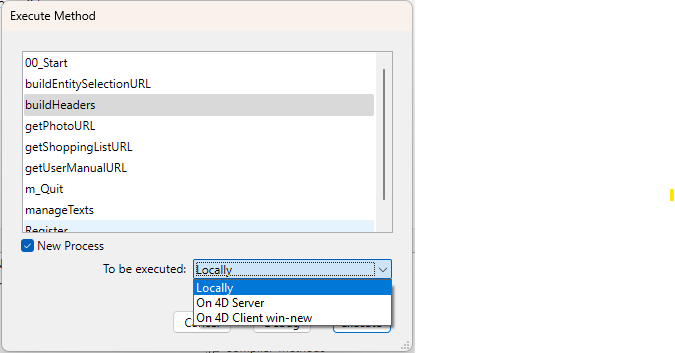
You can execute it on 4D Server or on another 4D client machine. Note that to display the 4D client machines in this list, they should have been first registered.
- Also on 4D, you can programmatically start a stored procedure using the commands
Execute on serverorEXECUTE ON CLIENT. - A method executed on 4D Server (database method, method with the Execute on Server attribute or stored procedure) can start a stored procedure using
Execute on server,New process, orEXECUTE ON CLIENT.
It is not possible to use the process management commands DELAY PROCESS, PAUSE PROCESS and RESUME PROCESS from a remote 4D with stored procedures on the server.
Communication Between Stored Procedures and User Processes
Stored procedures can communicate between themselves using:
- the
session.storageshared object of the Stored Procedures Session - local or global semaphores
- records
- commands
GET PROCESS VARIABLE,SET PROCESS VARIABLEandVARIABLE TO VARIABLE - (deprecated) interprocess variables, interprocess sets and interprocess named selections
Keep in mind that the 4D commands act within the scope of the server machine which is executing the stored procedure (server or clients) in the same way as they act in the scope of a client machine.
The POST OUTSIDE CALL and Outside call mechanism has no meaning on the server machine, because stored procedures do not have a user interface with data entry.
Client user processes (processes running on a client machine) can read and write the process variables (*) of a stored procedure, using the commands GET PROCESS VARIABLE, SET PROCESS VARIABLE and VARIABLE TO VARIABLE.
(*) as well as the server machine interprocess variable.
Important: "Intermachine" process communication, provided by the commands GET PROCESS VARIABLE, SET PROCESS VARIABLE and VARIABLE TO VARIABLE, is possible from client to server only. It is always a client process that reads or write the variables of a stored procedure.
Stored procedures on client machines
Stored procedures can be executed on one or several 4D client machines. Stored procedures on client machines are executed the same as way as stored procedures on the server, except that on the client they can invoke data entry with legacy commands such as ADD RECORD.
Any client machine executing stored procedures triggered by a server or another client machine, should explicitly be registered for this session. There are two ways to register a client: it can automatically be registered when connecting or through programming.
- Registering automatically each 4D client machine connecting to 4D Server: check the Register Clients at Startup For Execute On Client box in the Settings dialog box. When this option is checked, each 4D client machine connecting to the application is automatically referenced with 4D Server as being able to execute stored procedures. A 4D Client type process named according to the client machine is created on the server. An equivalent process is also created on each client machine.
- Registering 4D Client through programming: you can register one or several client machines using programming, allowing you to select the client machines that needs to be registered and to define their registration name. Use the
REGISTER CLIENTcommand which allows you to register a client machine under any name. - Unregistering 4D Client: No matter how the client machines have been registered, you can unregister them for the current session using the
UNREGISTER CLIENTcommand for a given client. The registration process (named according to the client) disappears from the user process group on the server machine as well as on the client.
You can get the list and the task distribution (number of methods still to be executed) for the clients registered for a given session using the GET REGISTERED CLIENTS command.
Variables
Like all processes, each stored procedure, database method and trigger has its own table of process variables. These process variables can be created and used dynamically during each phase of execution.
4D Server maintains one table of interprocess variables (deprecated). The scope of these variables is the server machine. When running a compiled database, the interprocess variable table definition is common between the server and all the clients machines, each machine having its own instance.
Sets and Named Selections
- Process sets/named selections: A process object can only be accessed by the process in which it has been created and, if it has been created in a client process, by the "twinned" process created on the server. Process sets are cleared as soon as the process method ends. Process objects do not need any special prefix in the name.
- Interprocess sets/named selections (deprecated): An interprocess object is visible for all the processes on the machine (client or server) where it was created. A set or named selection is an interprocess object if the name of the set is preceded by the symbols (<>) — a “less than” sign followed by a “greater than” sign.
- Local/Client sets/named selections: A local/client object is only visible in the process where it was created. The name of a local/client object is preceded by the dollar sign ($).
Note: Although its name does not begin with a
$, theUserSetsystem set is a local/client set.
The following table indicates the principles concerning the visibility of named selections and sets according to where they are created (the table is identical for both types of objects):
| Client Process | Other client processes | Server process | Other server processes | |
|---|---|---|---|---|
| Created in a client process | ||||
$test | x | |||
test | x | x (Trigger) | ||
<>test | x | x | ||
| Created in a server process | ||||
$test | x | |||
test | x | |||
<>test | x | x |
x = visible
You need to keep this visibility matrix in mind depending on the operations you want to perform. For example, if you want to do a DIFFERENCE, INTERSECTION or UNION type operation, make sure that all the sets are visible on the machine that is carrying out the operation.
Execute on Server attribute
The Execute on Server project method attribute can be set using the batch setting of attributes dialog box as well as the Method Properties dialog box. When this option is checked, the project method is always executed on the server, regardless of how it is called.
Execution Context
When this attribute is checked, the execution context of the project method is comparable to that of triggers: the method on the server shares the same database context as the corresponding context on the client side for locking records and for transactions, but not the same language context (process variables, sets, current selections). However, unlike a trigger, a method executed on the server does not share the current record with the client context. All the parameters of the method are sent to the server and the return value, if any, is returned to the client.
Unlike the Execute on server command, this option does not create a process on the server. 4D Server uses the "twin" process of the client process that requested the execution. Moreover, this option simplifies the principle of delegating the execution of a method on the server since the transfer of parameters is automatically carried out in both directions, as with a "normal" method call. The Execute on server command functions asynchronously, therefore it requires more programming and makes use of semaphores for reading the results.
Usable Commands
Methods with "Execute on Server" attribute are subject to the same rules as the stored procedures as far as the use of 4D language commands is concerned.
Pointers
If you pass a pointer to a variable (simple variable, array or array element), the pointed value is also sent to the server. If the pointed value is modified on the server by the method, the modified value is returned to the client in order to update the corresponding variable on the client side. Pointers to a table or field are sent as references (table number, field number). The current record value is not automatically exchanged.
This option works the same way in interpreted mode as in compiled mode.
Example
Here is the code for the MyAppli project method which has the "Execute on Server" attribute:
 #DECLARE($table: Pointer; $field: Pointer; $array: Pointer; $search: Text) -> $result : Integer

  //Search and send back values for each record
 QUERY($table->;$field->=$search)
 While(Not(End selection($table->)))
    APPEND TO ARRAY($array->;myFormula($table))
    NEXT RECORD($table->)
 End while
 UNLOAD RECORD($table->)
 $result:=Records in selection($table->)
On the client side, the method is called as follows:
 ARRAY TEXT(myArray;0)
 var $vlnum:=MyAppli(->[Table_1] ;->[Table_1]Field_1 ;->myArray;"to find")
Resources folder
The Resources folder of a project can be used to share custom data (pictures, files, subfolders, etc.) between the server machine and all the client machines. On the server machine, the Resources folder is simply be located at the first level of the project root folder.
All referencing mechanisms associated with the Resources folder are supported in client/server mode (.lproj folder, XLIFF, pictures and so on).
Each client has a local copy of this folder. The contents of the local folder are automatically synchronized with that of the server each time the client connects.
Moreover, client machines can be dynamically "notified" during a session when the contents of the Resources folder of the server application are modified by a developer. This notification can be triggered:
- either automatically by the server, two minutes after the last modification made by a client (this delay helps to avoid inopportune notification in the case where numerous files are being copied).
- or manually via the Notify clients command in the action menu of the [Resources explorer]Using the Resources explorer on the Toolbox of the client machine at the origin of the modification.
- or by programming, via a
NOTIFY RESOURCES FOLDER MODIFICATIONcommand. This command is useful when the contents of the Resources folder are modified on the server machine via a stored procedure.
On the client side, the way the notification of any modifications will be handled depending on the Update "Resources" folder during a session setting value. This can also be set individually via the Auto synchro resources folder selector of the SET DATABASE PARAMETER command. Three choices are available: no synchronization, auto synchronization or ask. For more information, please refer to the Network and Client-Server options section.
Lastly, each client machine can synchronize itself with the server at any time via the Update Local Resources command in the action menu of the Resources explorer.