Overview
Events serve as a mechanism for initiating specific actions, often employed to trigger particular behaviors. They collaborate with various actions to establish dynamic interactions within an application.
For instance, when a user interacts with a webpage by clicking a button, you have the flexibility to determine the response, whether it involves invoking a function or opening another webpage. Furthermore, events can be activated in response to updates in a Qodly Source.
Within Qodly Studio, events play a pivotal role in executing code on the Qodly web server, without requiring any supplementary JavaScript.
Types of Events
Events can be set to trigger either when end-users perform specific actions or when qodlysources are updated.
User events
You can configure events to activate in response to specific actions performed by end-users, such as clicking buttons, moving the mouse cursor, and more.
Typical user events include On Click, On DblClick, On MouseEnter, On Keyup, and others. The available events may vary depending on the selected component, and detailed documentation can be found in the Triggers and Events section on each component's page.
Certain events, such as On KeyDown and On KeyUp, have a dedicated configuration interface for defining keyboard shortcuts. This allows you to bind specific key combinations (for example, Ctrl+S or Shift+⌘) to trigger a function when those keys are pressed.
Opening the Shortcut Setup
In the Events panel of a component, events like On Keydown and On Keyup display a small gear icon beside their function selector.
Clicking this icon opens a tooltip labeled “Shortcuts setup”.
Example:

Keyboard Shortcuts Dialog
Selecting Shortcuts setup opens the Keyboard Shortcuts dialog.
Inside the dialog, you can define one or more key combinations that will trigger the selected function.
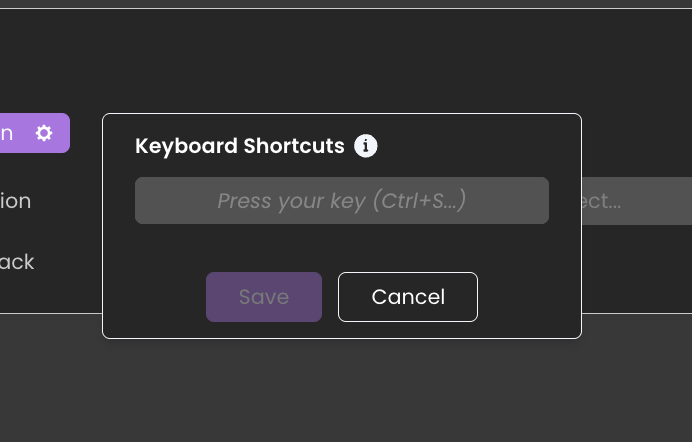
- The dialog prompts: “Press your key (Ctrl+S...)” — this field listens for key input.
- Press the desired key combination (for example,
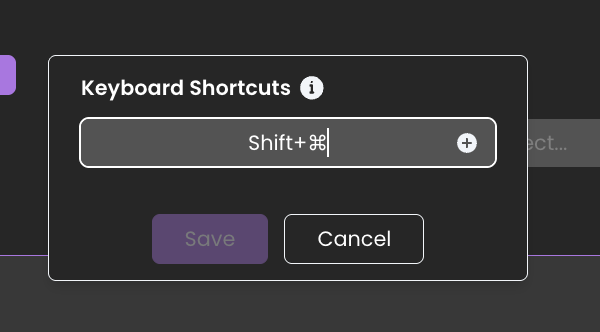
Shift + ⌘on macOS). - The detected combination appears in the input field.
Adding Shortcuts
Once a key combination is entered, click the “+” button to add it.
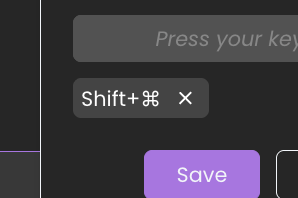
Each shortcut appears below the field as a labeled chip (for example, Shift+⌘).
You can:
- Add multiple shortcuts.
- Remove a shortcut using the “x” icon next to it.
- Save your configuration by clicking Save.
When a shortcut is defined, the Save button becomes active.
Cancelling or Clearing
If you want to discard changes or remove all shortcuts, click Cancel.
This will close the dialog without saving modifications.
App events
onSessionExpired
Triggered when the session is no longer valid. This happens in the following situations: • The server restarts • The user has been inactive for a certain period of time • A request fails due to an expired or invalid session
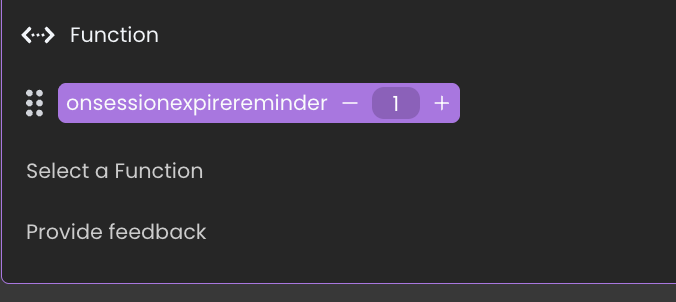
onSessionExpireReminder
Triggered after a configurable period of inactivity to warn the user before the session expires. The delay can be adjusted using a simple minute selector with plus and minus controls.
Qodly Source events
Besides events triggered by end-user actions, events can also be automated to respond when qodlysources undergo changes. Qodly Sources support two distinct events: the On Change event and the On Init event.
On Init
The On Init event is triggered when the Qodly Source is instantiated by the renderer. It provides an opportunity to set up an initial value for the Qodly Source. Actions or function calls bound to the On Init event should focus solely on initializing that specific Qodly Source.
On Change
When the On Change event is linked to a Qodly Source, it will trigger in the following scenarios:
| Trigger | Description |
|---|---|
| Qodly Source | |
| Entity Qodly Source | The contents of the entity attribute change |
| Entity Selection Qodly Source | |
| Scalar Qodly Source | The contents of the scalar qodlysource change |
Circular Dependency Risk
Using the Reload standard action within an On Change event can create a circular dependency. This causes Qodly Studio to enter an infinite loop of reloading, which results in the application freezing.
When you set an On Change event to reload the qodly source, the following happens:
-
A change in the qodly source triggers the On Change event.
-
The On Change event contains a Reload standard action.
-
The Reload standard action causes the qodly source to reload, which is considered a change.
-
This change triggers the On Change event again.
This creates a loop:
Change → On Change Event → Reload Standard Action → Change → On Change Event → Reload Standard Action → ...
This loop continues indefinitely until Qodly Studio runs out of resources or crashes, leading to the application freezing.